The DOM & Assistive Devices
Today we'll dive into accessibility, looking at the DOM, assistive devices, accessible content, and automated auditing.
Table of Contents

Accessibility overview
Accessibility is both a philosophy, and a legal requirement.
Philosophy: universal design, removing barriers and creating equity.
Law: The Access for Ontarians with Disabilities Act, in accordance with the Canadian Charter of Rights and Freedoms, mandates a level of WCAG compliance.
A few things I think about
when I think about web accessibility:
- The website's user interface is not the users' user interface.
- The whole point of the internet is interoperability.
- Whether or not you think people are a good thing, our forté as a species is not in individuals, but in being a group.
- I frankly don't care if people are productive. Putting up barriers is for jerks.
- A thing you can tell your boss: why do you hate money?
How we follow the WCAG guidelines
WCAG compliance mandates:
- semantics,
- proper source order,
- content considerations,
- text alternatives to visual information,
- accommodations for colour-blindness and low visual acuity,
- keyboard-only functionality, and
- the use of the WAI-ARIA specification.
Over the next couple weeks, we'll talk about how we accomplish each one of these things, but most of it is pretty simple: use html as it was intended, don't limit the user's choice of input device, and don't rely solely on what's visually shown to convey any information.
Before we talk about exactly how we avoid putting up barriers, let's talk about the different ways people are going to access your content.

Assistive Devices
The point of the internet is accessibility.
The web was conceived as a way of making information accessible. The end-user can use whatever software or hardware they want. Information is encoded in a standardized way so that the recipient of that information can interact with it however they see fit. This is the core principle of the internet.
If you understand this principle, then you understand "A11y" - web accessibility.
This principle of predictable encoding is what allows the internet to be accessible via refrigerator.

It also allows for a machine-readable internet powered by web‑crawling search engines, who can parse content and rank its relevance.
This principle is similarly responsible for the longevity of websites last updated in the mid-1990s.
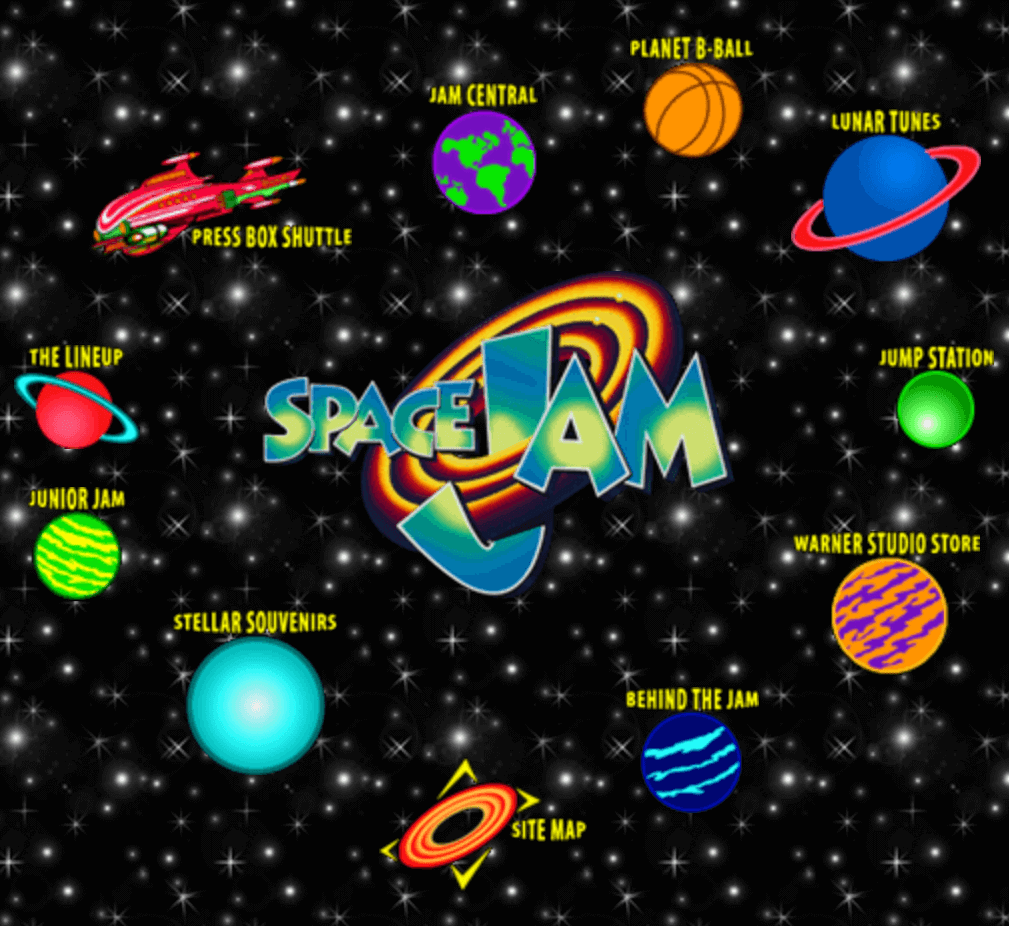
The point of the internet is to be accessible on Windows and Macs, on Netscape and Firefox and Chrome, phones and tablets and watches and treadmills.
The way this works is through the use of a markup language, HTML. HTML tags wrap content to communicate the type and purpose of content.
<blockquote>
    This is a quote.
    <cite>This is the citation</cite>
</blockquote>
The purpose of encoding the internet using a standardized markup language is to make our content client-agnostic. We encode the intention of our content, be it a link, a document heading, an input field. This allows the receiving technology - the client - to render our content however it wants.
The end-user's technology stack
“It works on my machine.”
- Every developer, at some point.
If the idea of the internet is to allow the user to consume your content using whatever technology they see fit, then every developer must, at some point, come to terms with the fact that other people exist.
While developers develop, we keep track of our progress by looking at the end-result of our work, and we see it on our own monitors, interact with it using our own keyboards and mice, and look at it with our own eyes. This is all fine and good and necessary.
This only becomes a problem when we forget the fact that what we are building is not only for our own computers, keyboards, mice, eyes, preferred browser, etc. etc.
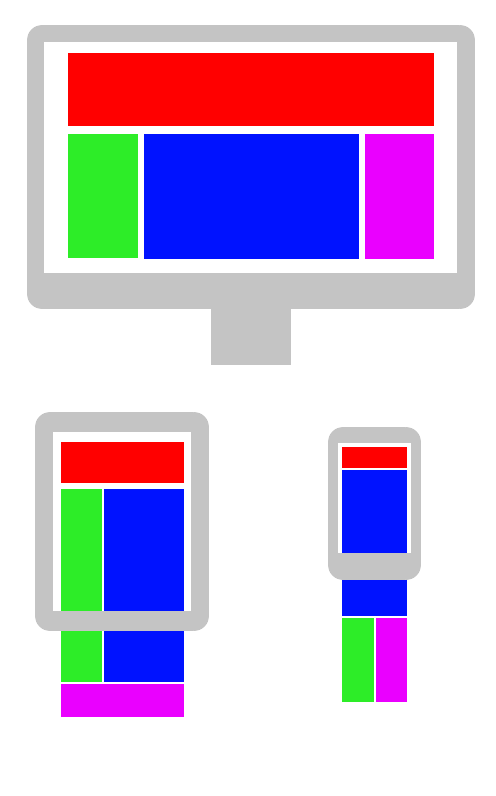
This issue is, of course, not limited to developers. It arises, for example, when a designer provides a design in specific "desktop" and "mobile" sizes, but fails to consider issues that might come up at other sizes or zoom settings.
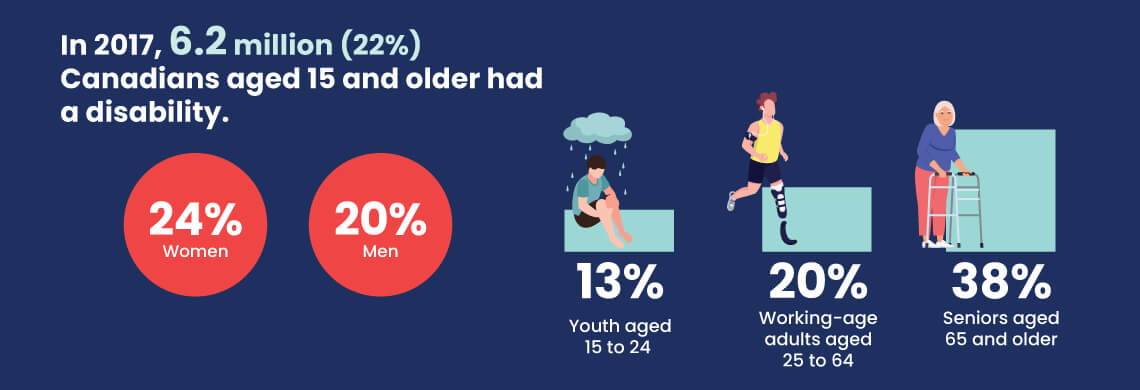
It arises when a copywriter over-uses idiom or jargon, or a product manager creates personas that ignore the fact that > 1 in 5 Canadians have a disability Opens in a new window.
For those of us who make things on the internet, to understand what we are building, we must understand the problem we are solving, a challenge that is a function of our own frame of reference.
This problem is this: we cannot dictate the technologies of our end‑user.
And, if we borrow from Marshall McLuhan, we can say that technologies are extensions of our selves. We take the problem one step further and say that we cannot dictate the end-user in either their technology or corporal faculties.

Once we start trying to solve that problem, we are building the internet as intended - accessibly.
"You can only view this website in Internet Explorer"; "you can only view this website on desktop"; "you can only view this website with your eyes" - these are all the same problem, and can all be solved by understanding the product we build when we build the internet.

It may seem like an overwhelming problem - having to consider the endless diversity of technologies, both present and future, even before we add in the endless spectrum of human ability.
Luckily, there is an inherent limit to this problem. Part of the burden is on the end-user.
We do not have to print physical copies of a website for people who do not own a computer. All we have to do is use our markup language to encode our content in a predictable way.
This is what allows the end-user to customize their personal technology stack in whatever way they see fit, given the resources (and the standards) at hand.
That stack includes hardware and software, network provider, and computer peripherals.
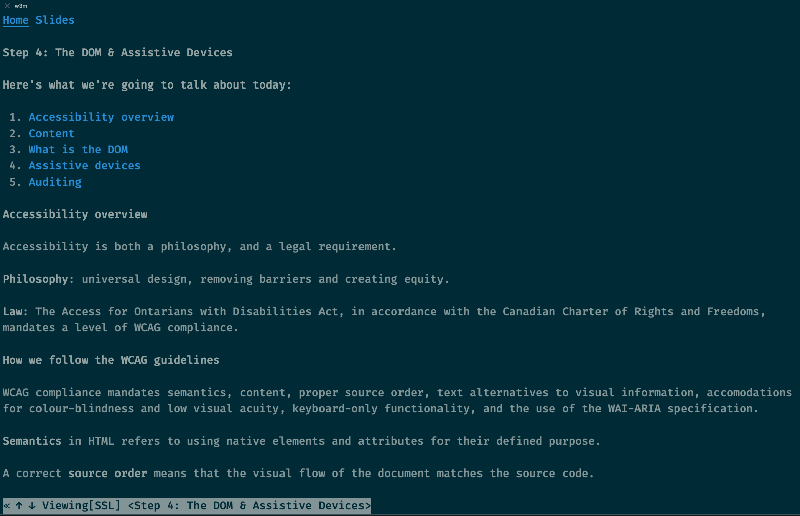
Mine includes too many browser extensions, a dorky mechanical keyboard, and, sometimes, a text-based browser called w3m Opens in a new window.

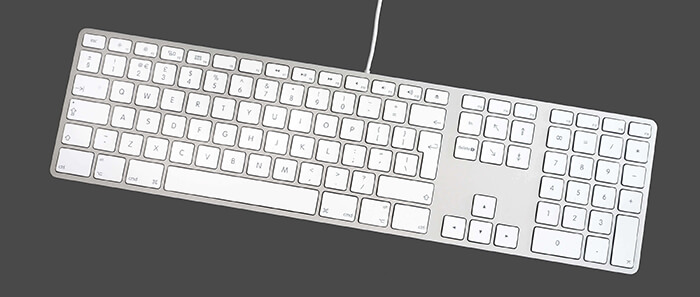
People are accessing your web content with assistive devices. The beauty of writing your code to standards is you don't need to know which devices.
It could be this one…
…or this one 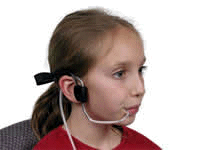
…or this one 
…or this one 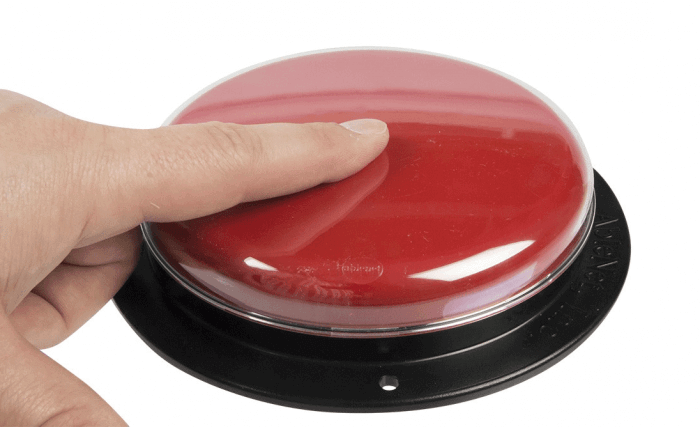
…or this one  Opens in a new window
Barriers beyond blindness
Aside from keyboard-control and text alternatives to graphics and context, there are a few additional concerns that the specifications consider:
- flashing content can trigger seizures,
- information encoded in colours can be inaccessible to colour-blind users,
- users may zoom into your content (even more than you'd think),
- poor colour-contrast can be challenging to read,
- obtuse or overly complicated language can obscure content,
- time-based interactions can be a barrier for those with cognitive or motor impairments.
The DOM API
How is it that our code can rise to meet all these wonderful devices? Via the DOM API!
Both 'DOM' and 'API' are acronyms that get thrown around a lot. Let's quickly make sure we all know what they mean.
An Application Programming Interface is a user interface, where the user is a person writing a computer script. It provides you information and functionality from the document or application that you're interacting with.
The Document Object Model is an API that represents an HTML (or XML) document as a traversable tree structure. The elements (and attributes, including text content) within that structure are referred to as 'nodes'.
The DOM API is how JavaScript (or any other scripting language that interfaces with your HTML) "thinks" about your document.
You know how in JavaScript, just about everything is an "object"?
var basicallyEverything = {
    property: "some value ",
    otherProp: "some otherVal ",
    someMethod (someParam) {
        return someParam + " some return value";
    }
};
And we access objects like this:
console.log(basicallyEverything.property +
  basicallyEverything.someMethod("whatever"))
// Outputs "some value whatever some return value"
Well, the Document Object Model is everything in an HTML page - not just the content, but all the properties of the elements as well - turned into an object like that. Try running this command in your browser console on any page:
console.log(window)It outputs almost a thousand different properties, functions, and nested objects! Every element on every HTML page has their own properties.
Of course, you've accessing the DOM API since the first day you wrote
document.getElementById("myFirstId");…or…
console.log(window.location.href);But the DOM API isn't just for us to mess around with - it's there so our users can access and manipulate our content in whatever way they see fit.
When we add attributes to HTML elements, what we're really doing is adding more information to the DOM.
console.log(
  document
    .getElementById("myImage")
    .attributes
    .alt
    .textContent
);
There are different kinds of attribute values we can assign to DOM nodes.
- native attributes
- provided by the HTML spec, e.g.
class,alt,target - data attributes
- user-customizable
- ARIA attributes
- ARIA (Accessible Rich Internet Applications) provides contextual information about the purpose of things, along with if and how DOM nodes can update, and what happens when they do.
This is all a very fancy way to say: "if you add these special attributes to your code, assistive devices can understand it better".
<div aria‑label="I'm extra accessible!">Content</div>Okay, one thing I want to clear up before we dig in - accessibility lives or dies in the front-end. Your front-end might be assembled by a server side language, a user might trigger error messages from the API, but all that matters is the content delivered to the user.
Native accessibility
It's pretty common for people to take for granted the amount of functionality we get "for free" when we use semantic HTML.
Just as a small example, compare a <button> element to a <div> pretending to be a button…
Obviously the <div> requires some CSS to replicate the style, but more than this, it needs…
- the
roleattribute to be identifiable to assistive technologies - the
tabindexattribute to become keyboard-focusable - several CSS properties to mimic the native cursor behaviour, text properties and visual state changes
- a
keydownlistener for both Enter and Spacebar
If there is a native HTML element whose semantics describe your content, it is very likely accessible by default.
People sleep on HTML
<details style="padding:1rem;">
    <summary>Need an accordion?</summary>
    <p>Try the <details> element</p>
</details>
Need an accordion?
Try the <details> Opens in a new window element
        <label>What about auto-complete?
    <input list="example-datalist">
    <datalist id="example-datalist">
        <option value="Yes">
        <option value="No">
        <option value="Ontario">
        <option value="Cambodia">
        <option value="Canada">
    </datalist>
</label>
How about a meter?
<label for="volume">Volume</label>
    <input
        onchange="const f=document.getElementById('outputMeter');f.setAttribute('value', this.value),document.getElementById('outputText').innerHTML=`${this.value}`;"
        type="range"
        id="volume"
        min="0"
        max="100"
        aria-controls="outputMeterRegion">
<div role="region" aria-live="polite" id="outputMeterRegion">
    <label for="outputMeter">Output meter set at <span id="outputText">50
    <meter id="outputMeter" min="0" max="100" low="33" high="66" optimum="80" value="50">
</div>Every HTML element except <div> & <span> have a semantic meaning. In other words, your HTML is already communicating with the client (browser, screen reader, web crawler, et al.) about your content. Provided you are not using your elements in a semantically incorrect way, your elements are already doing a lot of heavy lifting for you.
This is the purpose of the structural elements introduced in HTML5. Elements like <nav>, <header>, <main>, <footer> etc. communicate document structure to the client.
This is also why heading tags (<h1>, <h2>, et al.) are not meant to be used for styling - they communicate how the content is organized, and this organization is not just announced by the screen reader, but are an option for navigating through the document.
WAI-ARIA
The WAI-ARIA specification allows us to supplement our HTML elements, widgets and document presentation by defining roles and properties for screenreader users.
This is especially important when updating content on the page without a location change or page refresh, which is a common practice when using modern front-end JavaScript frameworks, such as React, Vue and Angular.
When to use ARIA
- There is visual information on the page that has no native text alternative format, or
- There is a DOM node (including text) that can or does update without a page refresh being triggered, and
- There is no native semantics or attribute available.
Visual information with no native text alternative format
What do we mean by this? Well, the obvious example of visual information is an image, but it has a native text alternative format - the alt attribute.

<button
  aria‑label="Close"
  onclick="myDialog.close()">X</button>
One instance of visual information not having a native text alternative is when we use symbols (including alphanumeric characters) to represent an available action that makes sense in a visual context (like a dialog), but may not make sense if the user just hears their screenreader say "x".
What ARIA attributes should I use?
You can find a pretty comprehensive list on MDN Opens in a new window, and we'll be doing a deep dive next week.
There are a lot, but you should know about the role attribute, which overrides or supplements native HTML semantics, and state attributes including aria‑live, aria‑expanded, and aria‑hidden (which differs from the native hidden attribute).
The ARIA spec has their own taxonomy, but for now let's say there are three categories:
role- Supplements or overrides native semantics
- labelling attributes
- Attributes like
aria‑label,aria‑labelledby, oraria‑controls, can describe an element, or point to a relationship with another element. - state attributes
- Attributes like
aria‑live,aria‑expanded, oraria‑busy, can be updated with JavaScript to communicate the state of content.
That's enough on aria today - we'll be looking at it more over the next two weeks, so don't feel like you need to memorize the whole list Opens in a new window right now.
For the rest of today, let's take a step back and look the most basic element of accessibility: our static content.
Making content accessible
We can provide alternatives to this visual information (including information communicated through layout) with alt attributes for graphic content, scope and caption for tables, and labels or screen reader-specific content for inputs, buttons and links.
We must also keep in mind that our elements are often used as navigational landmarks for people using non-visual clients, including headers for document structure.
Text alternatives are provided when information is presented visually - this includes images, graphs, charts and tables, but also cases where elements have implicit functions based on the visual design, i.e. buttons within a form.
Refer back to our Week 1 "Component of the Week" Opens in a new window for a refresher on text alternatives.
Accessible text content means…
- Unique page titles (as it can be difficult to assess if the page has actually changed otherwise)
- Concise link text (as screen readers read them in their entirety)
- Text-based information about link behaviour
- Skippable navigation
- Captions, transcriptions and other alternative text that provide an alternative to all relevant visual information
- Verbose error messages (that capture focus), and
- Using words rather than ASCII symbols
Page titles
The text in the <title> element in the head of your HTML document is the first content that is read out by a screen reader when they land on your page.
Page titles should be unique and descriptive. If it's page 2 of 3, say so.
Headings
Heading elements (<h1>, <h2>, etc.) are important tools used for page navigation when using assistive technologies.
Headings should structure your document. Think of the way your information is structured - it's very rarely appropriate to have just an h1 and then p tags all the way down. Headings should provide meaning and context.
It can be tempting to use heading elements for their style attributes. That's all well and good until you start breaking semantics. Use CSS to style headings however you like, but maintain your document's structure.
h1
- h2
-- h3
-- h3
- h2
-- h3
--- h4
-- h3
Alt text
Alternative text should be your best effort to convey all of the relevant information in the image - no more, no less. This gets tricky when you get into things like graphs, but remember what we talked about when the image was our "Component of the Week" - alternative text should describe the meaning the user is meant to take away.
Transcripts and captions
Audio and video need transcriptions and/or captions. Keep an ear out for sounds that convey relevant information, and make sure they're included - not just the words.
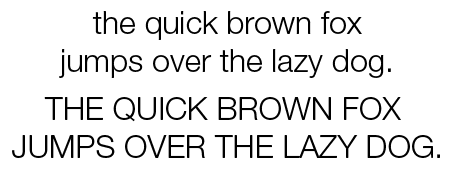
Beware things that look like text
Be on the lookout for images with embedded text, or worse - OCR-resistant PDFs.
ASCII
Think about what this sounds like: ¯\_(ツ)_/¯.
For the same reason, write "16 to 17 years old" instead of "16-17 years old".
Links
- Don't say they're links - the screenreader tells you
- Don't capitalize - screenreaders will read them out letter by letter
- Don't make the link text the url
- Keep link text short - screenreaders won't skip them.
- Identify link behaviour - i.e. downloads, new windows, anchor links
- Don't embed link type identifications in your CSS with pseudo-elements or icons - they're not accessible to screen readers.
- Don't abuse JavaScript to do link-ish things with elements that aren't links (links meaning anchors or area tags)
- If an image is inside an anchor tag, it's alt text should refer to the link behaviour, as well as the image's information.
- Empty or broken links are just not ok.
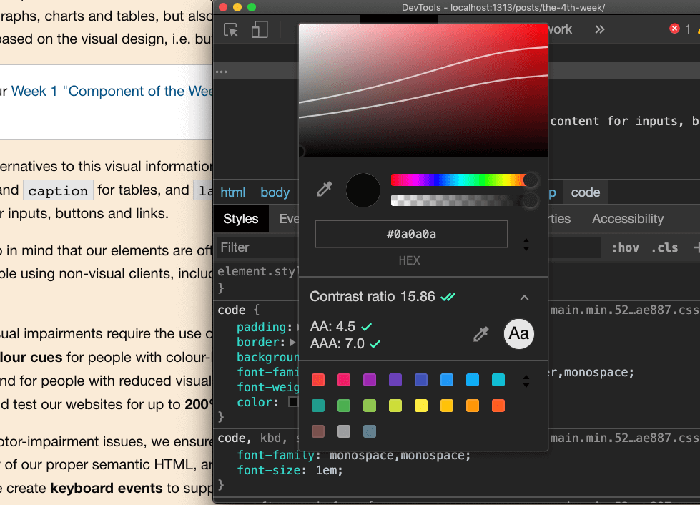
Because not all visual impairments require the use of a screenreader, we provide alternatives to colour cues for people with colour-blindness (i.e. focus outline, proper labelling), and for people with reduced visual abilities we check our colour contrast ratios and test our websites for up to 400% zoom.
Semantic HTML
Accessible documents are traversable - you can move through them with the keyboard or a scripting language the same way (and in the same order) you move through them with your eyes.
Semantics in HTML refers to using native elements and attributes for their defined purpose.
A correct source order means that the visual flow of the document matches the source code.
Showing & hiding
See the Pen Hiding Techniques by Simon Borer (@simonborer) on CodePen.
Skip Links
Hiding things, and then showing them on focus comes in handy for the (WCAG required) navigation skip link.
Focus-ability and tab order
tabindex is an attribute that specifies focus-ability. Focus is usually stepped through with the tab key, hence the name.
tabindex="-1" is focusable, but not sequentially. As in, you can`t tab to it.
tabindex="0" means that the element is focusable in the normal tab sequence.
tabindex="1", or any other positive value, means that this element takes precedence over any other element without a declared tabindex. If you are using this, that's a bad sign.
Remember not to confuse the visual order with the DOM order!
Declaring a tabindex value can affect scrolling behaviour on child elements Opens in a new window.
For people with motor-impairment issues, we ensure that we do not disable the native functionality of our proper semantic HTML, and where native functionality is not available, we create keyboard events to supplement our click events.
We also maintain our tab order by having our source order properly represented.
On those rare occasions where our visual order and source order are in conflict, we can control focus with JavaScript.
Where we want to make an element focusable that does not have native focus-ability, we can use the tabindex='0' attribute value.
Mobile/touchscreens
Of course we keep in mind that all these standards apply whether on a desktop or mobile device, with a few special considerations for mobile, including…
- Maintaining keyboard functionality
- Supporting different orientations
- Touch target size and spacing
- Gesture alternatives, and
- Appropriate virtual keyboard data types.
Accessibility workflow
Planning for accessibility involves the entire team - developers, yes, but also design, content, and management. Once team members each understand the role they play in producing accessible content, it's possible to build, audit, fix and track your progress over time.
A team-based approach to content
Let's look at some ways different team members can get involved.
Project manager
- Assume you have a diverse user base, and develop personas accordingly. If you don't have a diverse user base… maybe there's a reason?
- In the hiring process, do not seek out team members with disabilities so that you can dump responsibilities on them, but do consider diversity an asset.
- Consider user testing with people using their own personalized technology stack, such as people who use assistive reading devices, people with color blindness impairments, or people with motor impairments.
- Insist on accessibility testing as a standard part of the development lifecycle.
- Get familiar with the accessibility opportunities that go with each role in your team. For example, you might consider taking the free "Web Accessibility by Google" Udacity course Opens in a new window.
Design
- Familiarize yourself the categories of disability most likely to affect the experience of a web product - vision impairments, hearing impairments, motor issues and cognitive disorders.
- Get to know a screen reader.
- Learn how to emulate different forms of colour-blindness Opens in a new window using the browser tools.
- Provide direction to the developers on tab and focus order.
- When customizing interactive elements like form controls, consult a developer about what customizations are easy and which are burdensome. (The answers might surprise you!)
- Provide WCAG-compliant touch targets Opens in a new window in mobile designs.
- Check your colour contrast Opens in a new window
- Aim for Universal Design Opens in a new window where possible.
Content
Copywriters should be prepared to provide…
- alternative text for images (not always easy - consult the W3C's alt text decision tree Opens in a new window)
- link context
- headings to structure content
- unique page titles
- captions or transcriptions for audio-visual content
- form labels, instructions and error messages
While not required by the AODA, WCAG Level AAA requirements include considerations when using unusual words and abbreviations, as well as for reading level and pronunciation.
Accessibility within the team
All content considerations for the web can also apply to documents within the office - spreadsheets, PDFs, text documents, and slideshows included.
While we don't have time to cover all of these today, getting familiar with making accessible web content will also teach you how to make accessible documents. In the Microsoft Office suite of tools (Word, PowerPoint, etc.), there are built-in accessibility checkers Opens in a new window, and most common office formats take accessibility in mind, like Adobe PDFs Opens in a new window and Google Docs, Slides and Sheets Opens in a new window.
In other words, you are not alone. Making good content is a team effort. You can't make a site accessible by yourself. But they can't do it without you either.
TEST
I can't emphasize enough how important it is to test. That's why there are QA departments. It is wonderful to follow best practices, but even when specification documentation is perfect (it's not), and even when you limit your scope to the latest versions of a few popular clients (don't), and even when your linters catch all the edge cases (they won't), you still makes mistakes.
Auditing
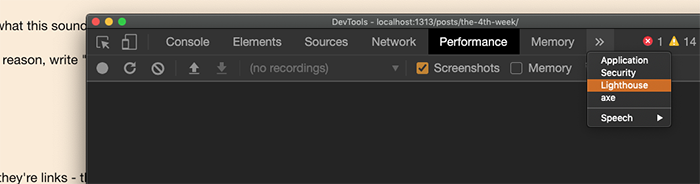
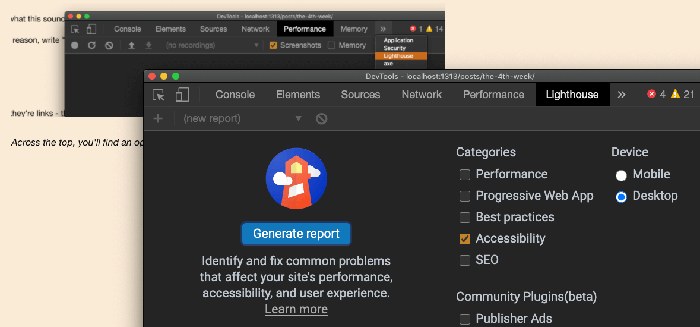
Over the next couple weeks we'll learn why accessibility auditing can never be fully automated, but today, we're going to look at two handy, light-weight tools for quickly checking to see if there are any obvious accessibility errors on a page.
Open Chrome, and open the developer tools.
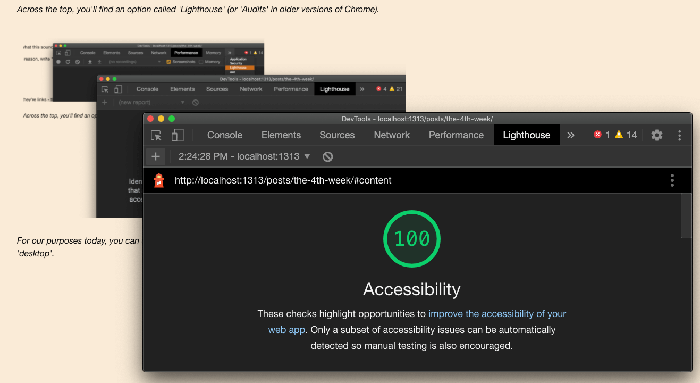
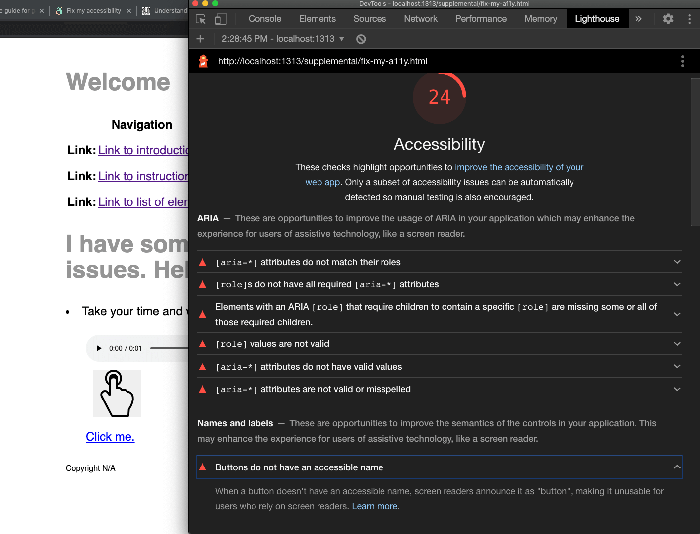
Lighthouse isn't the best Opens in a new window tool out there, though. Deque Opens in a new window is widely considered the industry leader in accessibility consulting. They built the open-source ruleset Opens in a new window that the Lighthouse accessibility audit and Microsoft's Accessibility Insights for Web are based on, and their own browser extension Opens in a new window is considered the best tool for automated auditing of single pages.
Let's try it out!
- Download this HTML document Downloads a web page, or opens in a new window.
- In VS Code, use the Live Server extension to serve the
/fix-my-a11y.htmlfile you just downloaded.
- Now you should be able to access your files (via something like http://localhost:1337/fix-my-a11y.html), and run the aXe browser extension to diagnose errors.
- Open the downloaded html document in a code editor, and alter the HTML until you've resolved all the errors.